The short version
Start with one task and the files your team already uses. Omni checks the figures, shows which files they came from and drafts a next step. The current app can show a summary with links to its records, list items for review and save what a person decided. Connections to other systems and sending messages need separate work and testing.
Step 1 — Choose one task
Bring a recent example and explain how your team handles it today. We agree which figures matter, what rules you use, which files to check and who will check the result. The contact form starts a conversation with us; it does not create an account or give you an instant assessment.
| Question | What we agree |
|---|---|
| What starts the work? | A schedule, an uploaded file, an incoming request or an event in an agreed system. |
| What should it produce? | A report, draft or check that the person doing the work can use. |
| Who checks it? | The person who checks the facts and decides what to do. |
| What would count as progress? | The time and quality today, and the improvement you want to see. |
Step 2 — Start with files you already have
A first test can use a spreadsheet and documents from the systems you already run. You do not need to replace those systems. A direct connection needs permission, a working way to read the records and a plan for keeping them up to date. A logo on this site does not mean your account is already connected.
We also check dates, record numbers, missing details and different versions. An invoice reminder, for example, needs the latest payment status and reminder history, not just the invoice. If those records do not match, fixing them may be more useful than drafting a message.
Step 3 — Check the figures and draft a next step
The draft should separate what a file says from a calculation or suggestion. It should show the dates covered, link each important number to the record behind it and say when something is missing. That lets your team challenge a figure before using the draft.
The distribution, automotive, retail, sales and healthcare examples use sample figures. They show what a screen could look like, not customer results or a promise that every system is already connected.
Distribution sales and stock
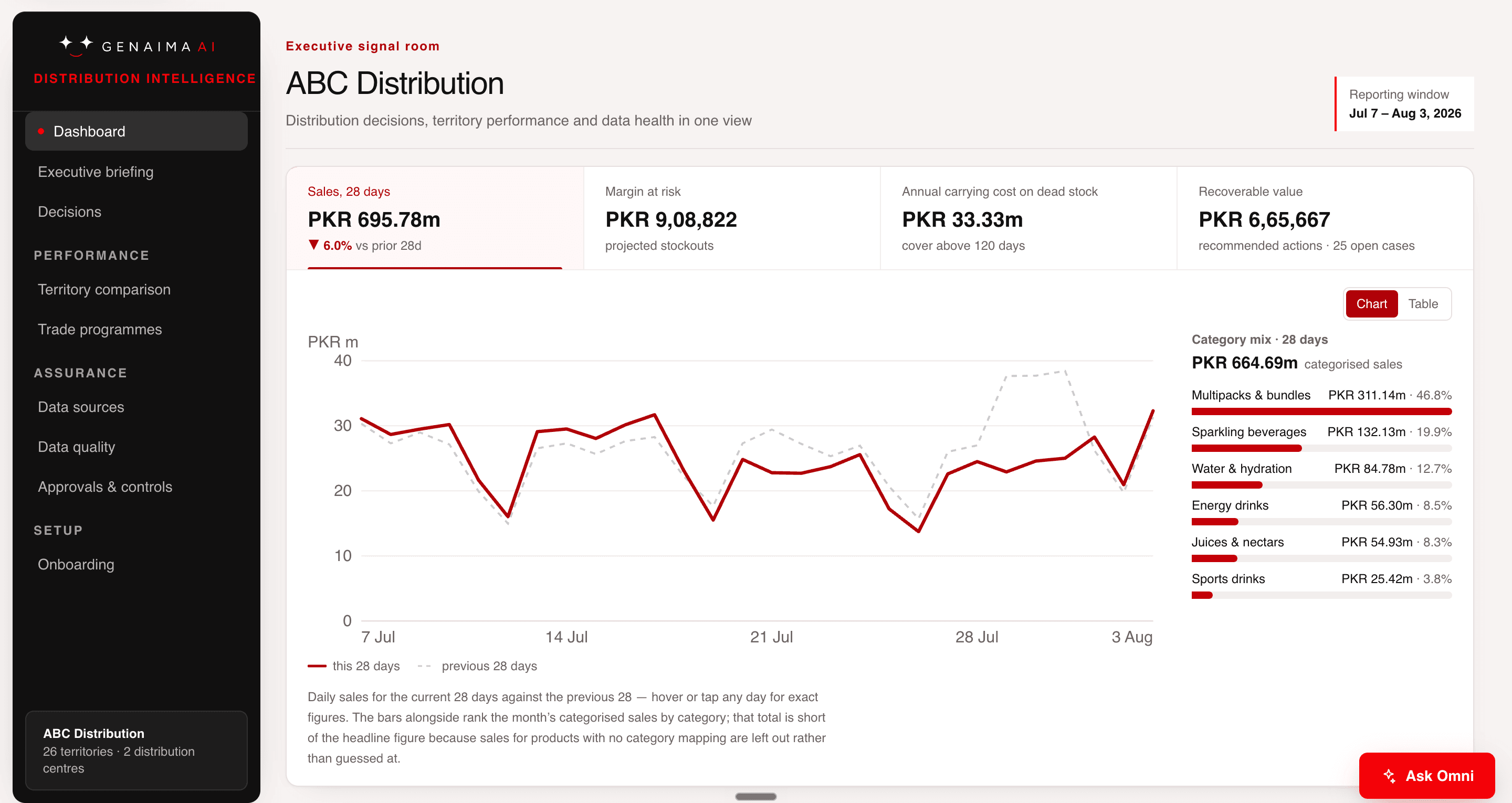
Margin at riskPKR 908,822
Step 4 — Approve, then record the result
The first test can stop at a draft. Sending a message automatically needs its own checks: the right recipient, the right approval and a way to stop it. Read more about data and approvals.
Prepare
Use only the agreed files to make a draft or suggestion.
Review
Show the files used, anything missing and the suggestion to the right person.
Decide
That person can approve, decline or ask for a correction.
Send or change only when agreed
Messages or record changes are added only after we agree who may approve them and test the checks.
Step 5 — Check whether it helped
Test normal work and awkward cases: missing or old records, duplicate requests and a suggestion someone declines. Count time spent preparing and checking the result, corrections and failures. Include software costs as well as staff time. A fast first draft is not useful if it takes too long to fix.
Where your files go
We agree where the work runs, which services see your files, who can access them and how long they are kept. If you need everything on your own network or site, we check that every service can meet that requirement before using business data. See the tools we use.
From first test to everyday use
If the first test helps, we explain how to use the result, fix bad records, deal with failures and get support. New files or changes to business systems need their own checks. Use the before-and-after worksheet to decide whether to keep, change or stop the work.
Record whether this first task should continue, change or stop.
Common questions
Must we replace our current systems?
No. Files from your current systems may be enough to start. A lasting connection depends on what those systems allow and what access you can grant.
How long will it take?
It depends on the task, the files available and the checks your team needs. We review a real example before agreeing a schedule.
Could a simple rule be enough?
Yes. If a rule in your current software handles the task reliably, use it. AI may help when someone must read, compare or draft from varied material.
Get startedTell us which task takes too long and what files your team uses today.